Manage your profiles in a common workspace using different devices and IP addresses without facing checkpoints or bans for multi-accounting.
Teamwork features
Data sharing
Share profiles, proxies, and cookie files across the team.
Team roles
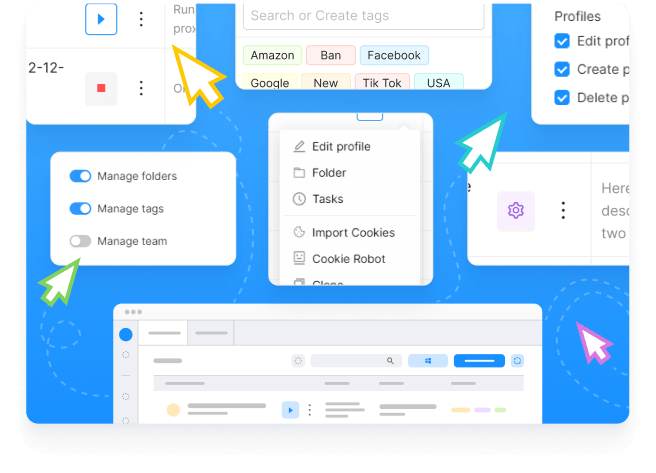
Flexibly manage every team member's role. Allocate and manage rights to create, modify, delete, clone, and transfer profiles.
Profile folders
Configure folder access rights for each team member. Allow team members to move profiles into a folder without granting them access to its contents, preserving the privacy of your workflows.
Password-protected profiles
Set passwords to protect profiles against unsanctioned launches and for additional profile data protection.
Activity history
Track your team members’ detailed activity history using the Action Log.
Teams of any size
Add new team members without limits. Increase the number of available profiles and API requests to tailor your subscription to your project’s needs.
Frequently asked questions
The owner of the master account can invite a new participant to a team. To do so, go to Team in the Settings menu and click the Invite button. Provide an email address for the invitation message and assign new member's rights in the pop-up window.
Working in a team offers numerous advantages. For instance, it allows you to share profiles without having to export and import files.
It is not possible to work with the same profile simultaneously, but you can do so in turns.
Group profiles into folders and configure access rights for each team member individually. Each team member will only have access to the folders they are permitted to use and will work only with their assigned profiles.
Yes. Users without access to a folder can move profiles into it without being able to view its contents. This is useful for transferring profiles between team members who work with different folders.
No. At the moment, this option is available only to teams that were already using tags for access rights management before the release of Octo Browser 3.0.
Join Octo Browser now
Or contactCustomer Serviceat any time with any questions you might have.